

Transform your customer experience with gift notes that add a personal touch to every order. Jetpack offers two gift note options: Standard (monochrome thermal labels) and Premium (full-color printed cards). Choose the option that best fits your brand and budget.
This feature is exclusively available to merchants who meet certain eligibility criteria. To learn more about pricing and enablement, please reach out to your Merchant Success Manager.
Gift Note Options
Jetpack offers two mutually exclusive gift note options. Select the one that aligns with your brand and customer experience goals.- Standard
Standard Gift Notes
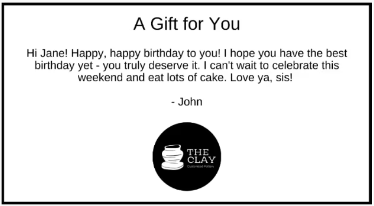
Standard Gift Note Specifications
| Specification | Details |
|---|---|
| Availability | All Jetpack fulfillment centers |
| Printed on | Direct thermal label stock |
| Size | 4 x 6 inches (10 x 15 centimeters) |
| Color | Monochrome, black and white |
| Font | Zebra Font 0 (font and ink color cannot be changed) |
| Ink color | Black |
| Character limit | 450 max characters and a maximum of 10 lines per message |
| Text formatting |
|
| Logo | You can add a single 100 x 100 pixel (1 x 1 inches or 2.54 x 2.54 centimeters) black and white monochrome image |
| Logo location | Bottom center |
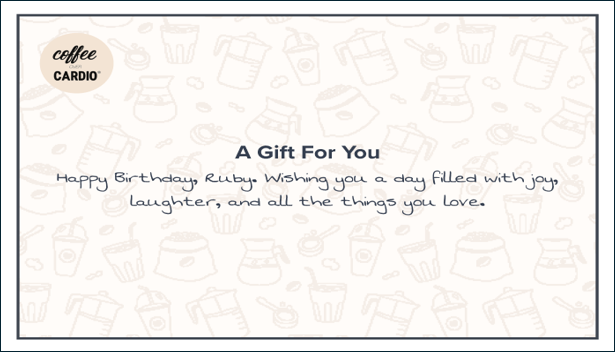
Gift Note Pricing
| Gift Note Type | Per Gift Note Printed |
|---|---|
| Standard Gift Note | USD $0.50 |
| Premium Gift Note | Please use the chat feature in your Jetpack dashboard or submit a case to Jetpack Care to learn more. |
You are subject to a 3% credit card processing fee if you meet certain criteria outlined in your pricing agreement.
Enabling Gift Notes
You can enable either Standard or Premium gift notes in your Jetpack dashboard. Only one option can be enabled at a time.Navigate to Gift Notes settings
From the Customize Order Documents page, click Manage Gift Notes (hyperlinked).You will be redirected to the Gift Notes page.
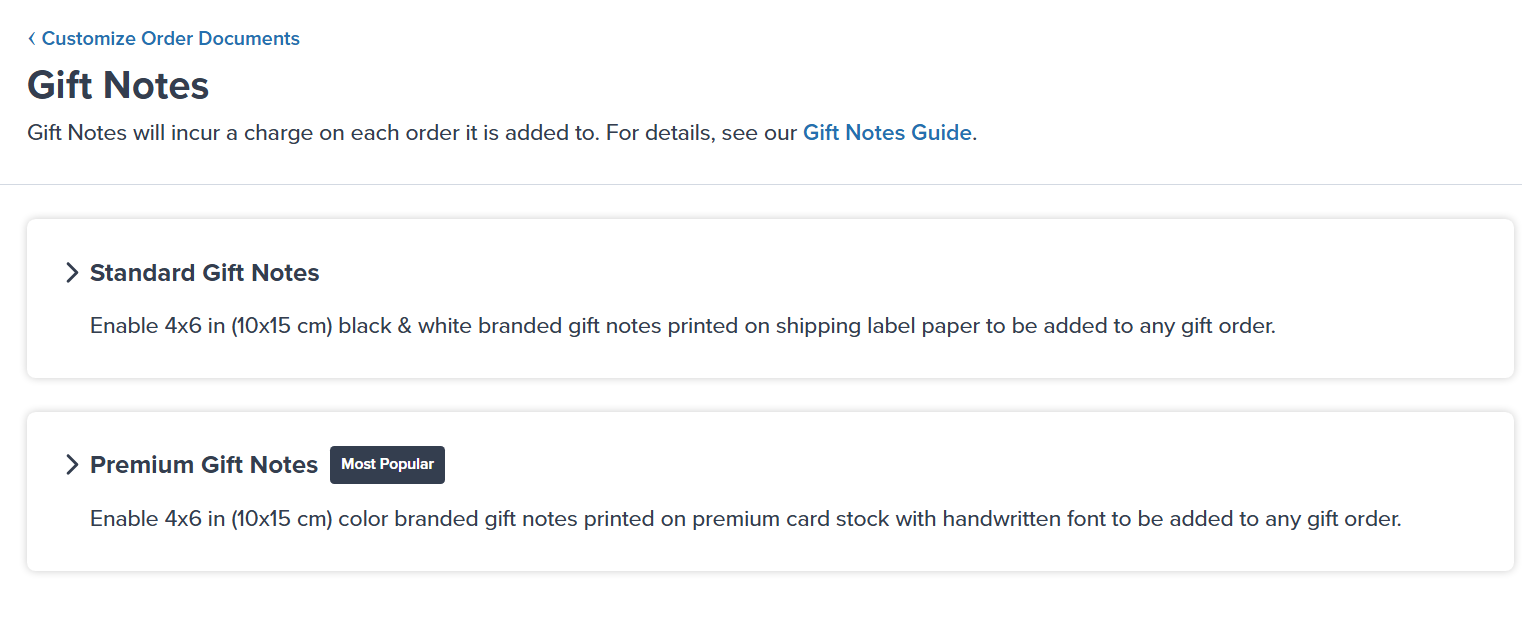
Enabling Standard Gift Notes
- Standard
Steps to Enable Standard Gift Notes
Upload your logo (optional)
Standard gift notes do not require a logo. If you choose to add one, upload a 100 x 100 pixel (1 x 1 inches or 2.54 x 2.54 centimeters) black and white monochrome image.The logo will appear at the bottom center of the gift note.
Enable the feature
Click the toggle icon next to Disabled to enable Standard gift notes.You will receive a success message confirming the feature is enabled.
Adding Gift Notes to Orders
Once gift notes are enabled, you can add personalized messages to customer orders.Steps to Add Gift Notes to Orders
Gift notes can be added through your integrated e-commerce platform or directly in the Jetpack dashboard when creating or editing orders. The gift message will be included in the order details and printed when the order is fulfilled. Your enabled gift note type (Standard or Premium) will automatically apply to all orders that include a gift message.Disabling Gift Notes
You can disable Standard or Premium gift notes at any time in your Jetpack dashboard.Navigate to Gift Notes settings
From the Customize Order Documents page, click Manage Gift Notes (hyperlinked).You will be redirected to the Gift Notes page.
Select the gift note type to disable
Select Standard Gift Notes or Premium Gift Notes (depending on the gift note you have enabled).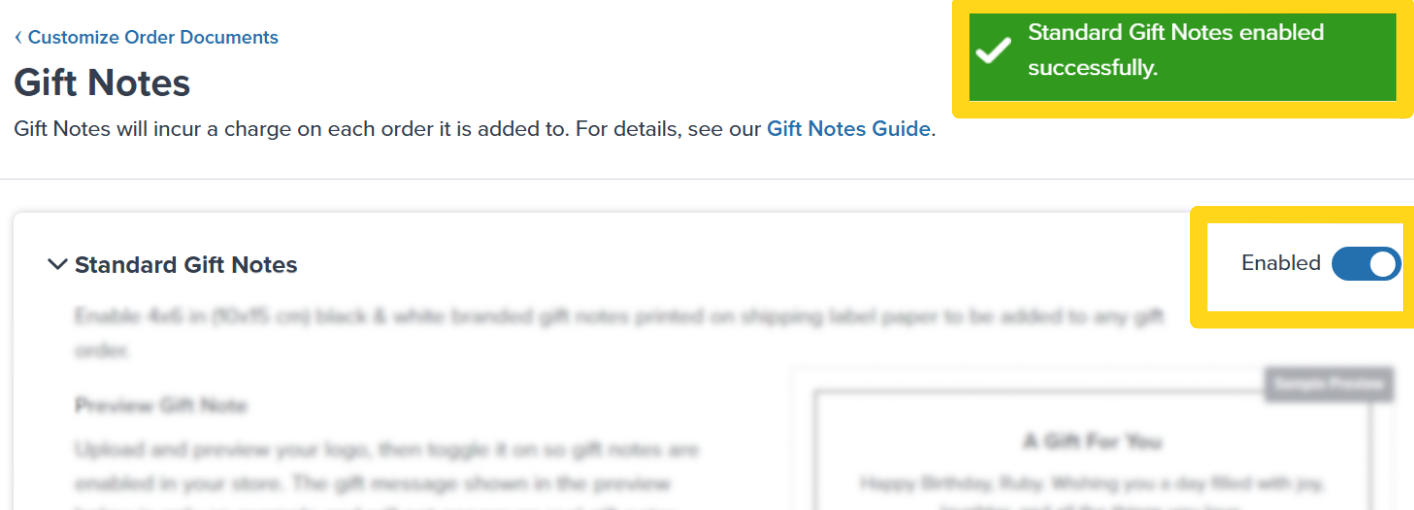

Deleting Gift Note Images
You can delete and replace the logo (Standard) or background image (Premium) associated with your gift notes.Navigate to Gift Notes settings
From the Customize Order Documents page, click Manage Gift Notes (hyperlinked).You will be redirected to the Gift Notes page.
Select the gift note type
Select Standard Gift Notes or Premium Gift Notes (depending on the gift note you have enabled).
- Standard gift notes: You are not required to have an image. If you do not provide a new image, your Standard gift notes will print without a logo.
- Premium gift notes: You are required to have an image. Removing the image will disable the feature, and you must re-enable it once you have provided a new background image.
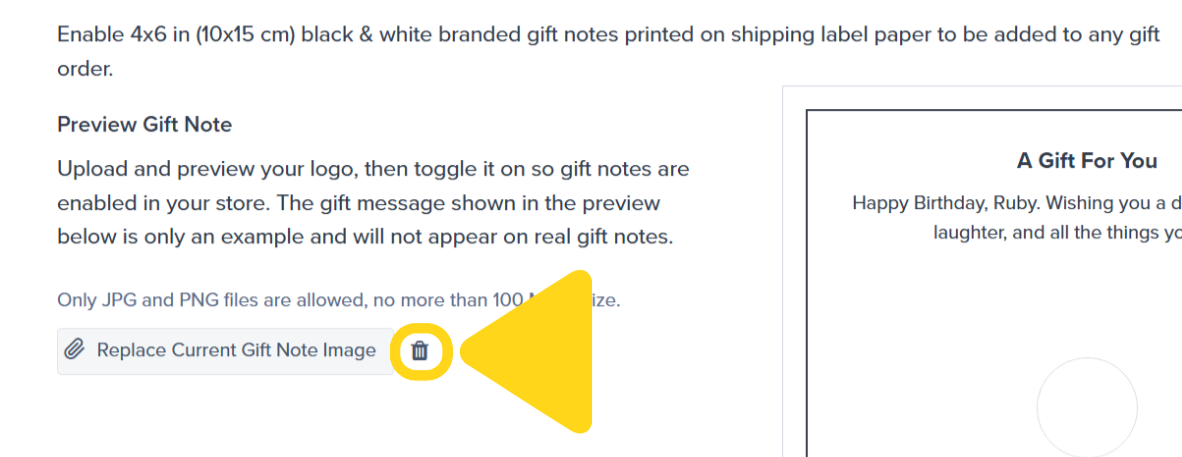
Confirm deletion in the dialog
A confirmation dialog will appear. Review the on-screen message and click Yes, Delete.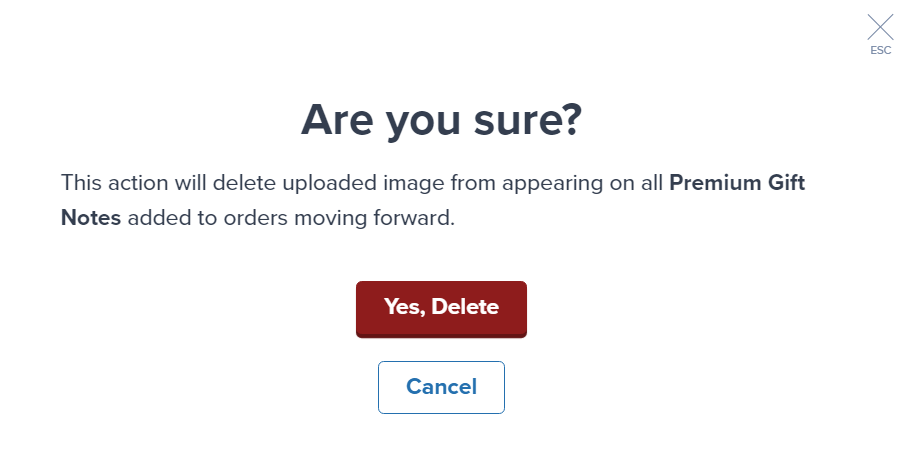

Let’s Dive Deeper
Customize Order Documents
Overview of all document customization options
Marketing Inserts
Print on-demand promotional materials
Custom Sender Labels
Personalize sender information on shipping labels
Labels and Packaging Overview
Back to the main labels and packaging guide
Packaging Preferences
Configure standard, SIOC, and custom packaging options
Custom Packaging
Send custom packaging materials to fulfillment centers
Questions? Contact Jetpack Care.
If you have any questions about gift notes or need assistance with image requirements, contact Jetpack Care for help. Our team is always here to assist via Slack, phone, or email!