

This article explains how to manually add products to your Jetpack Product Catalog without a store integration, whether one at a time (as a base product or with variants) or in bulk via Excel, so you can keep your inventory up to date and organized.
Accessing the Add Product Options
Navigate to Products
Click Products in the left-hand navigation. You’ll be redirected to the Product Catalog page.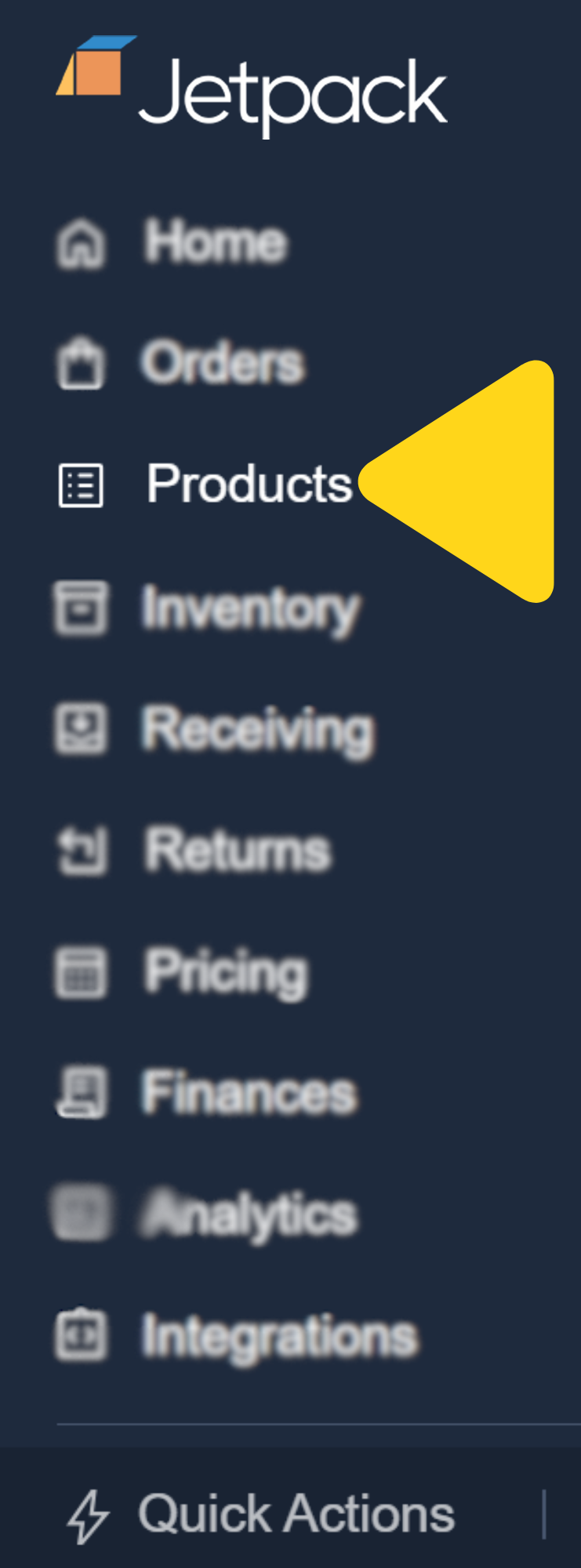
Open Add Product menu
Click Add Product in the top-right corner, then select Add Product from the dropdown. A pop-up will appear asking you to choose how to add your items.
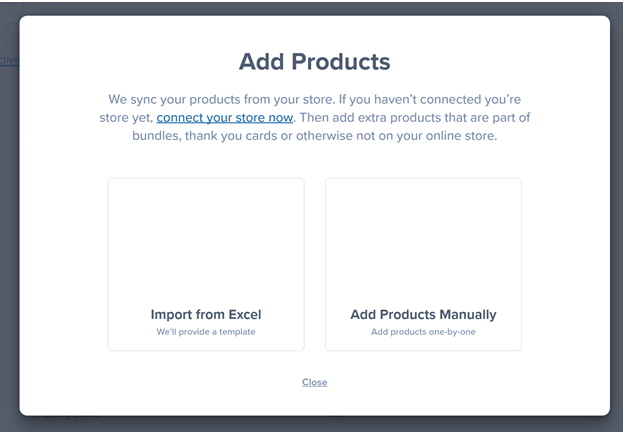
Manually Adding a Base Product
Use this when your item has no variants.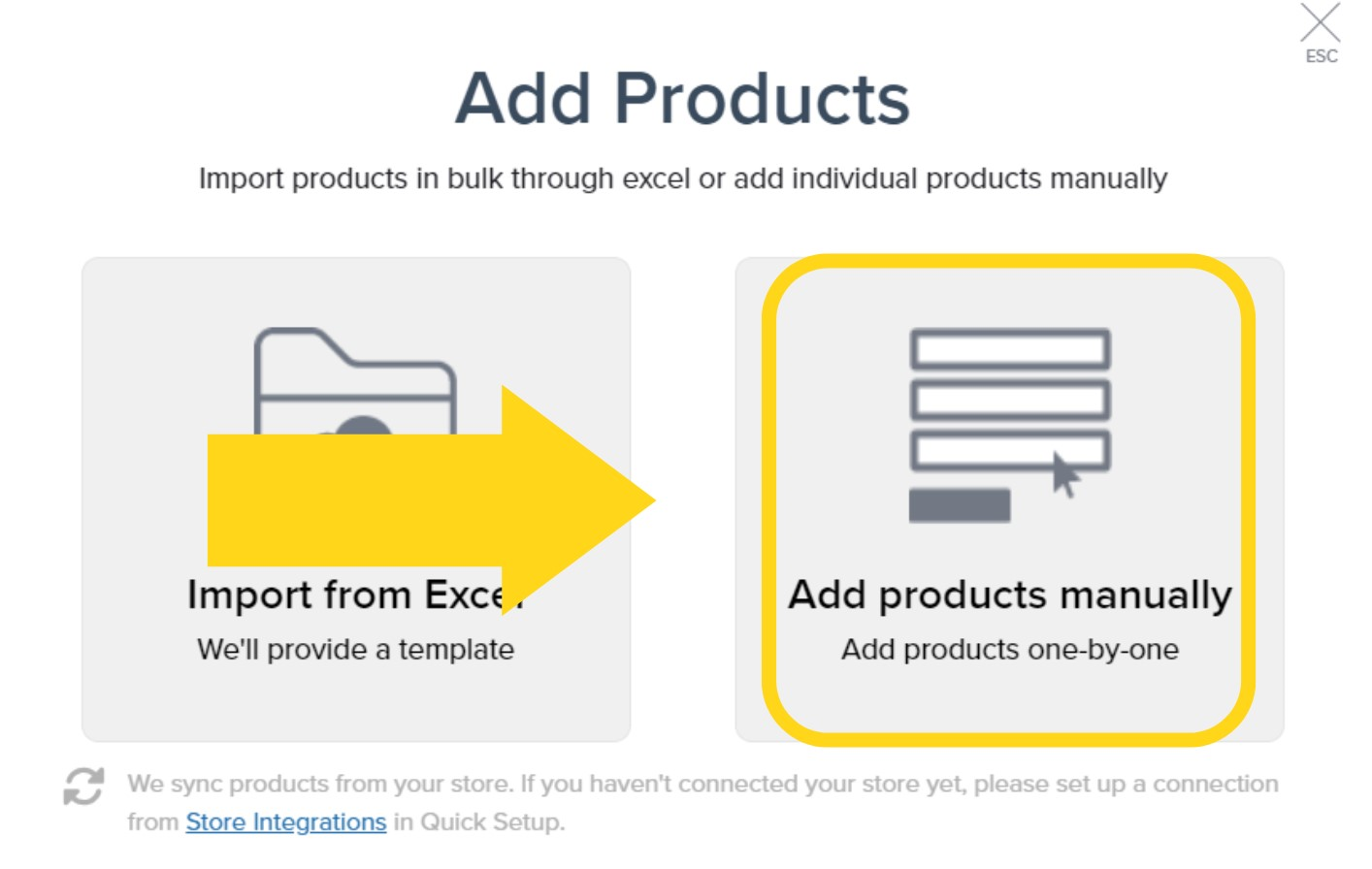
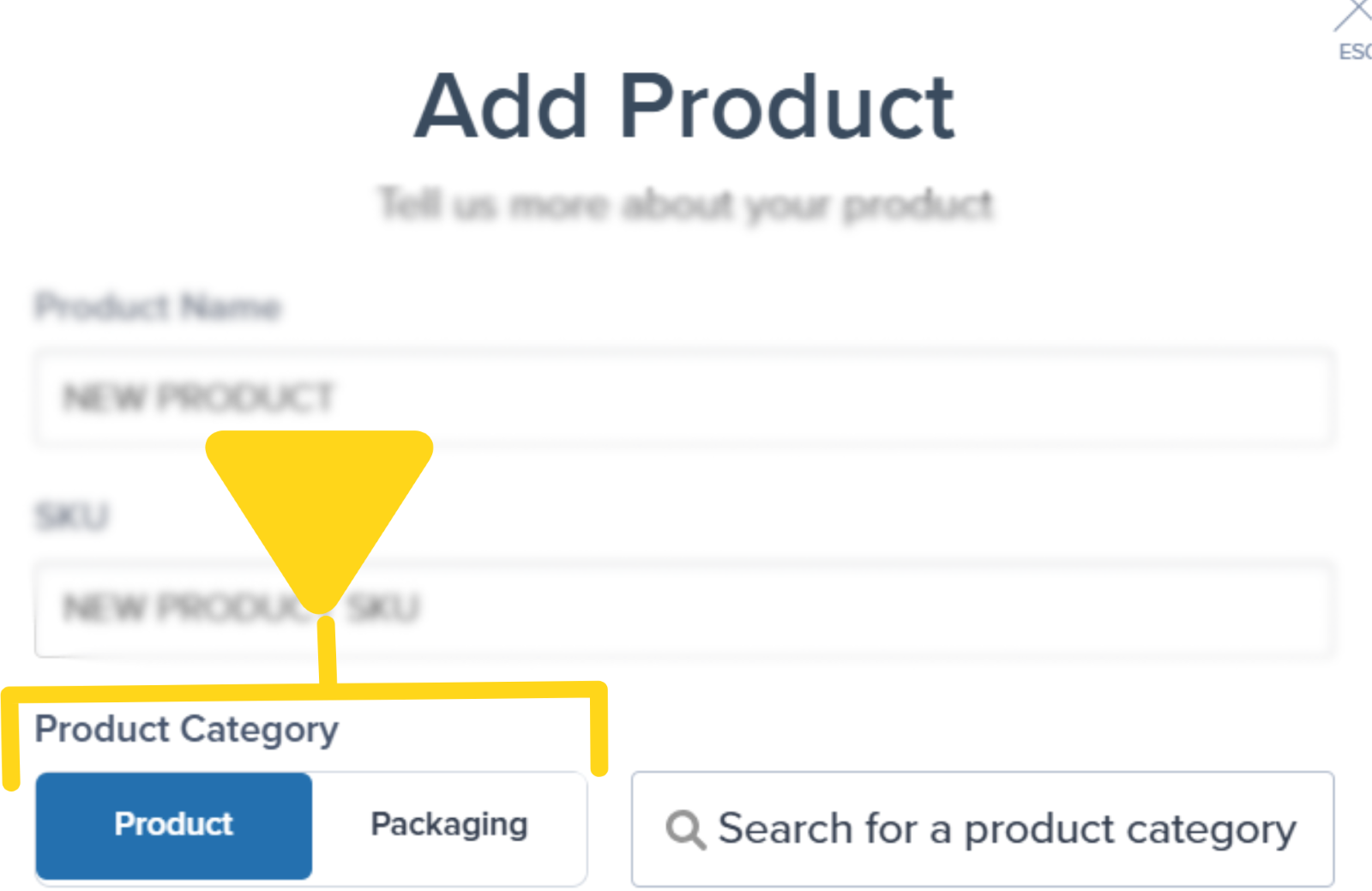
Enter product details
Enter a Product Name and a unique SKU, then select either Product or Packaging for Product Category.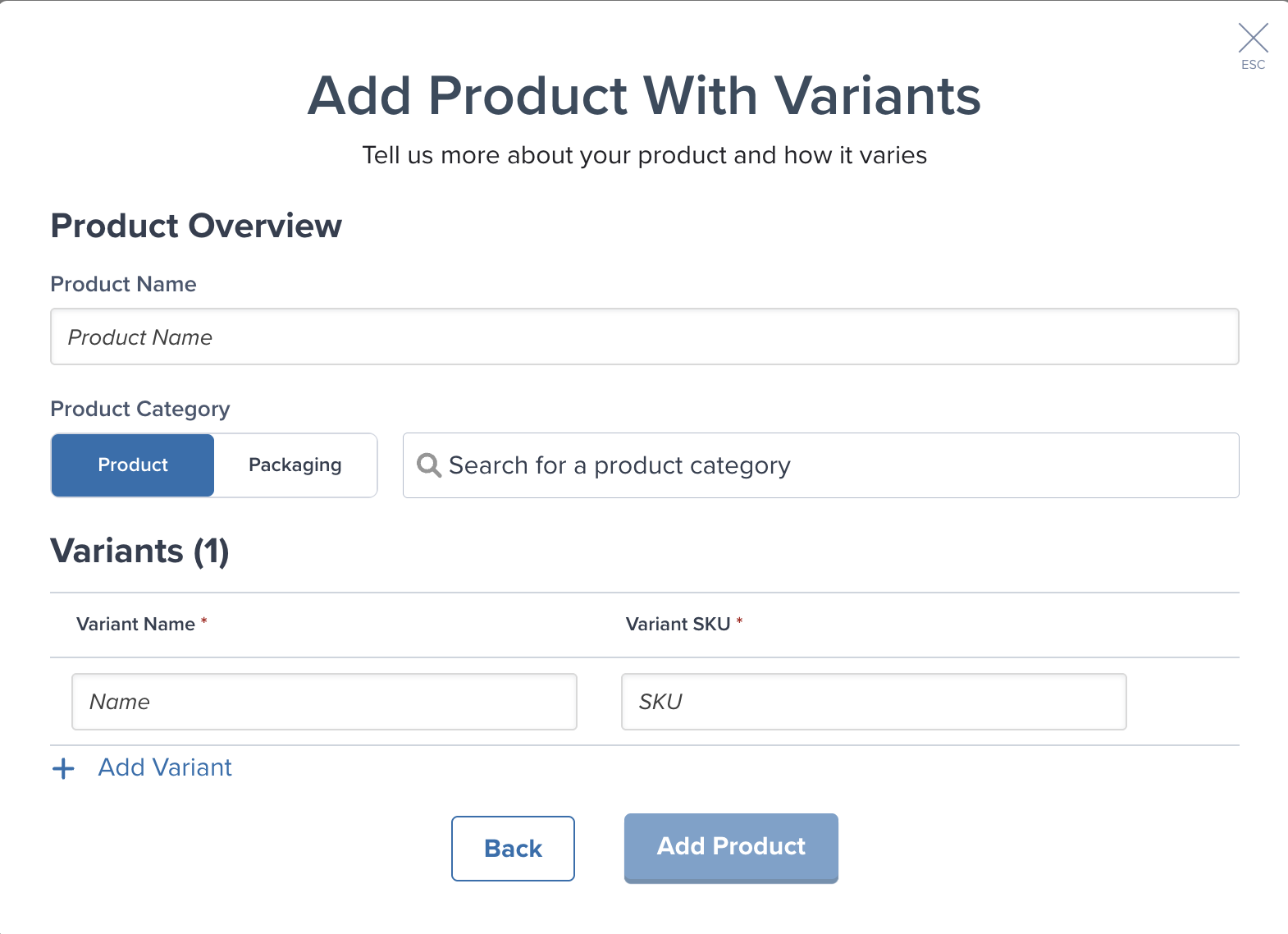
Select product category
Use the drop-down options next to Product and Packaging to select the category or packaging type.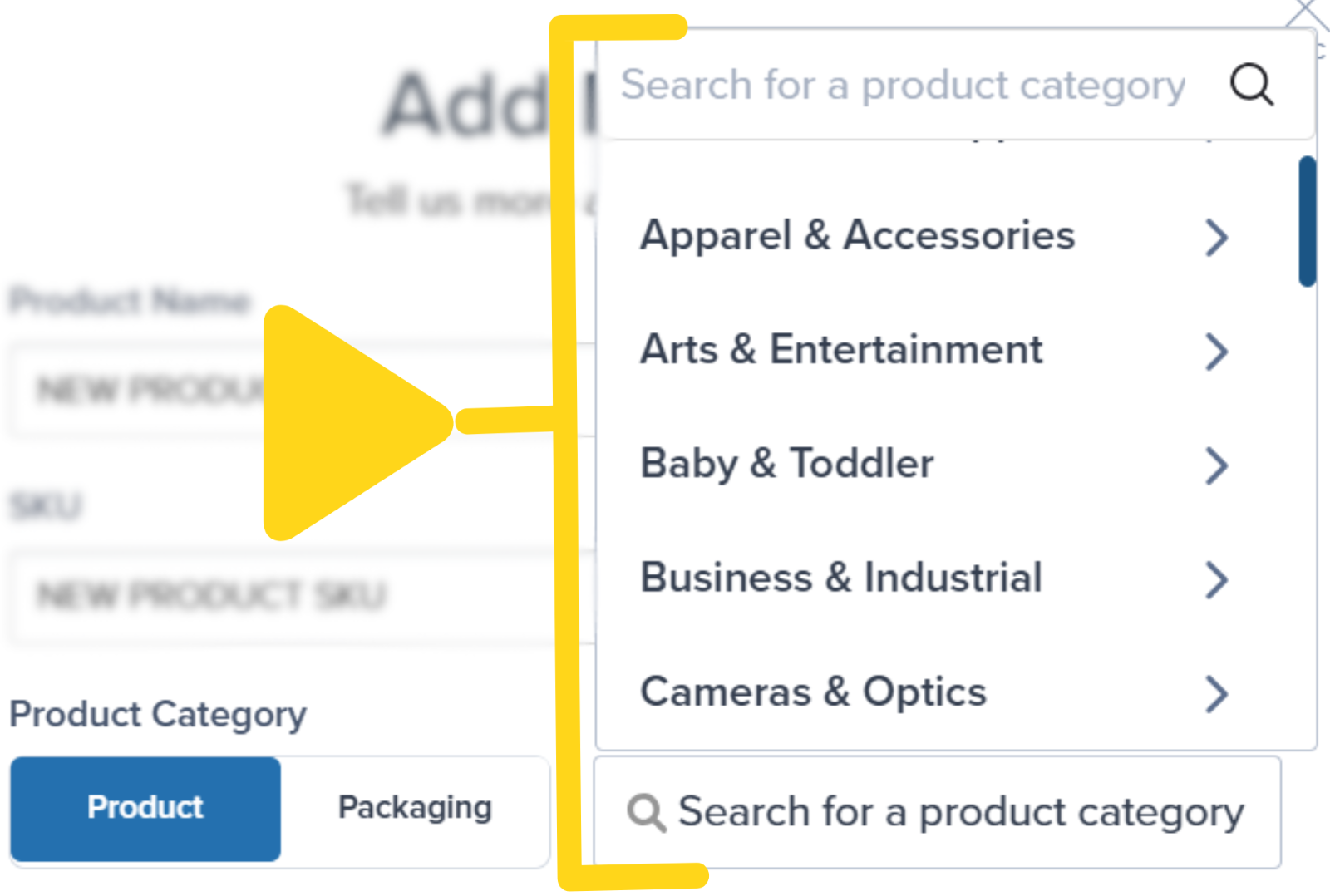
Manually Adding a Product with Variants
Use this when you have two or more related SKUs under one parent item.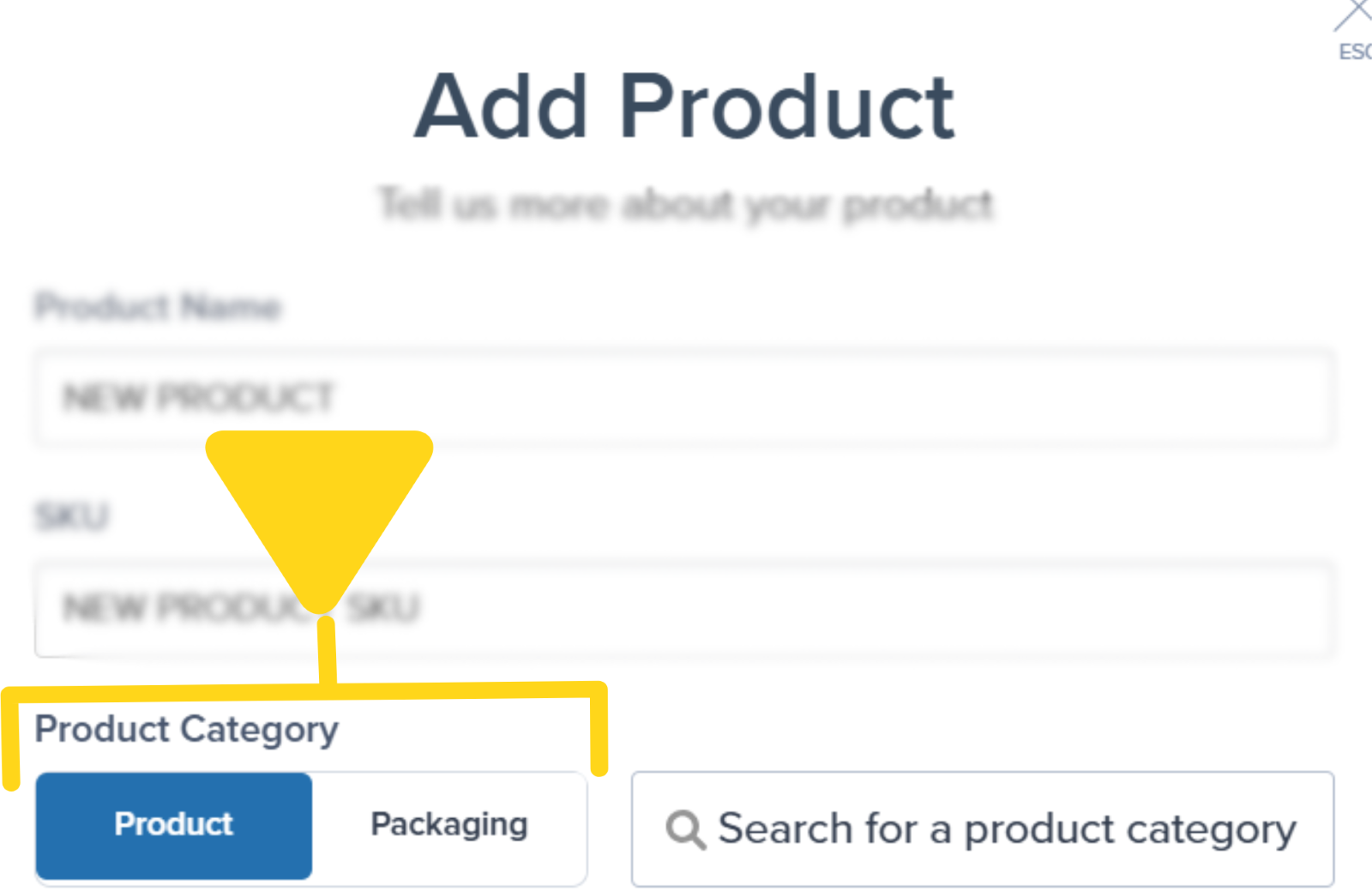
Set up parent product
Enter a Product Name for the parent (container) item. This holds all your variants together.Optionally choose Product or Packaging, then pick a Category (or let Jetpack’s AI suggest one).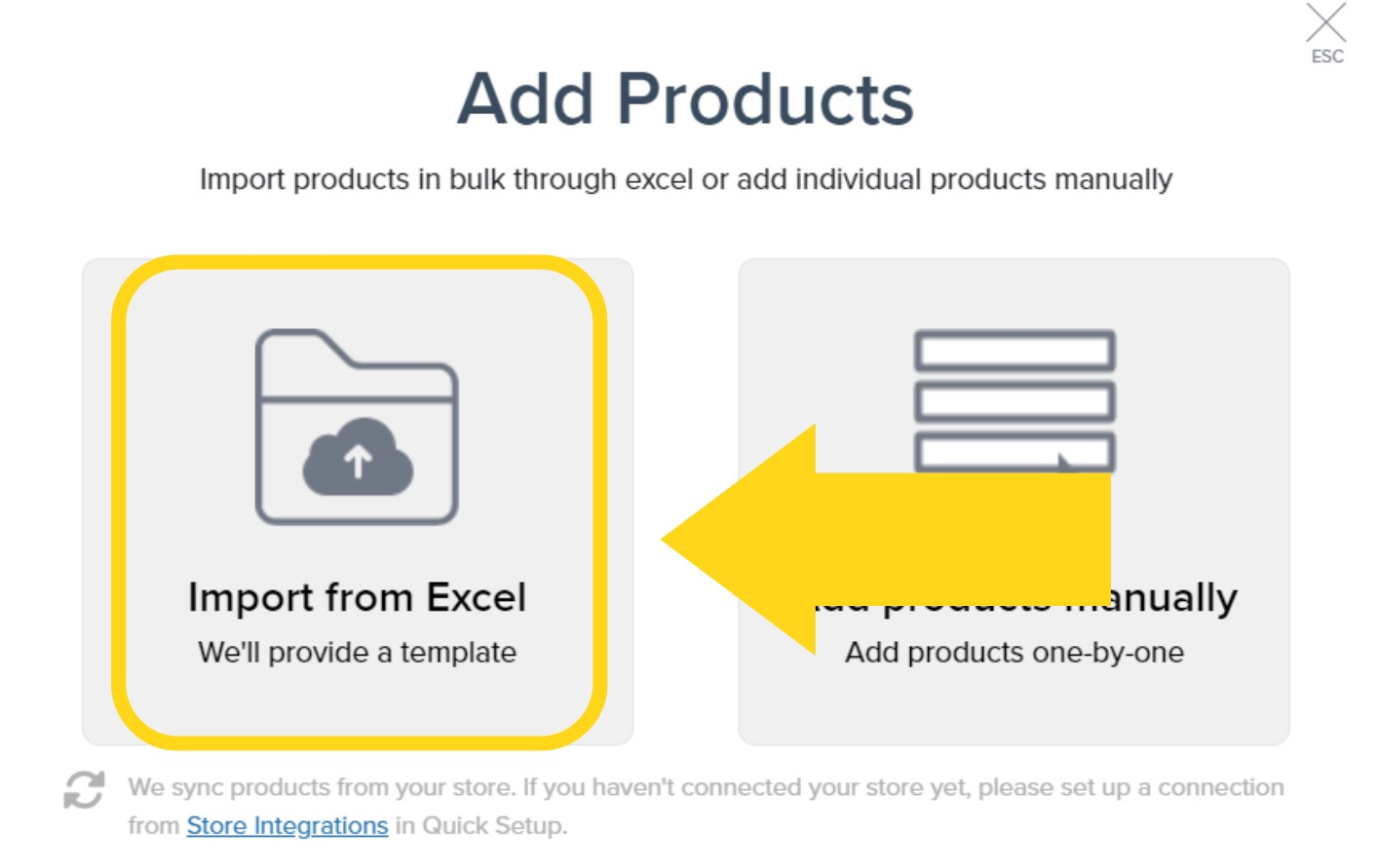
Add variants
For each variant:
- Enter its Variant Name
- Enter its Variant SKU
- Click Add Variant to create another row
You can add up to 100 variants per parent/primary product.
Adding Products in Bulk (Excel Upload)
You can import base products and products with variants all at once using our Excel template.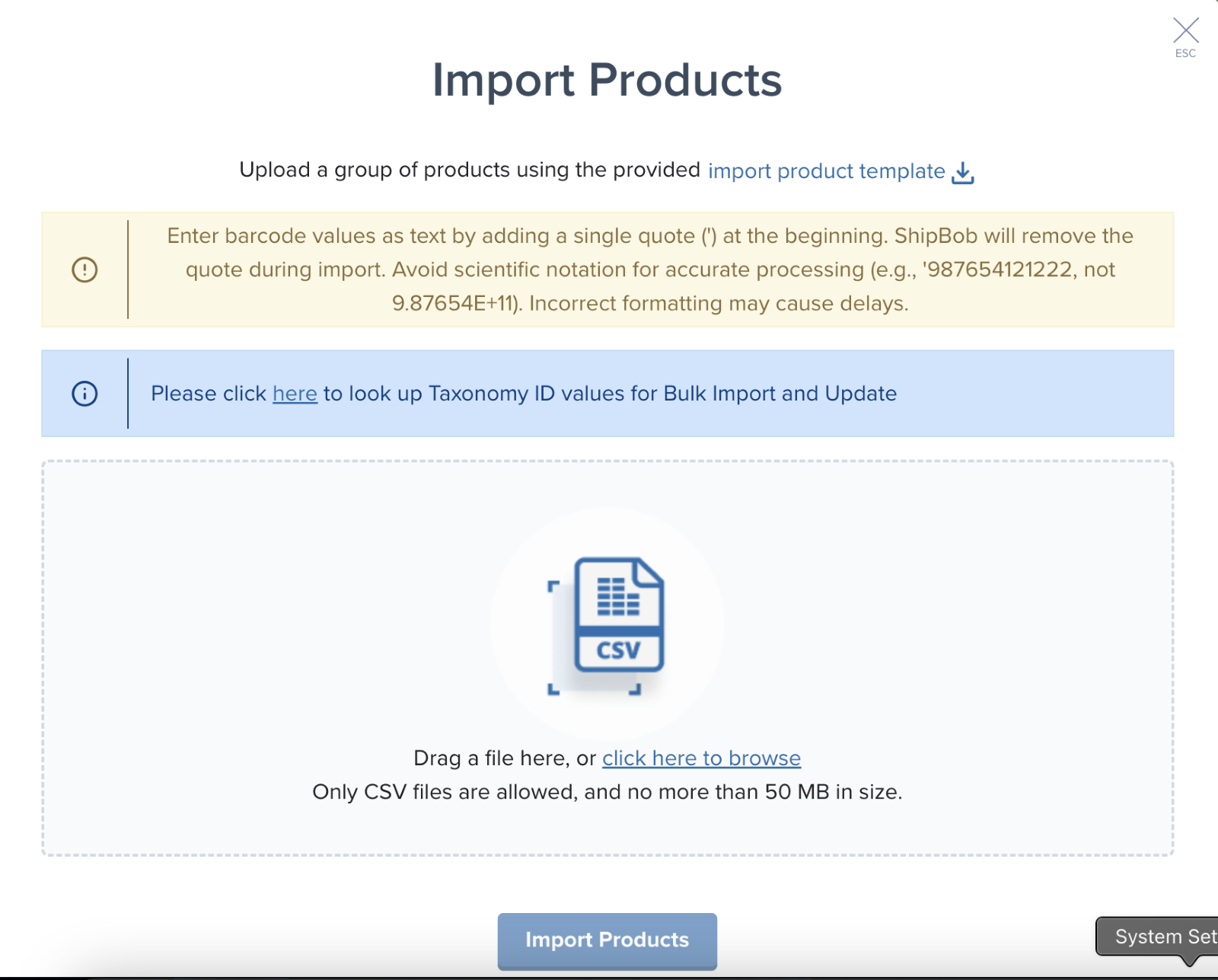
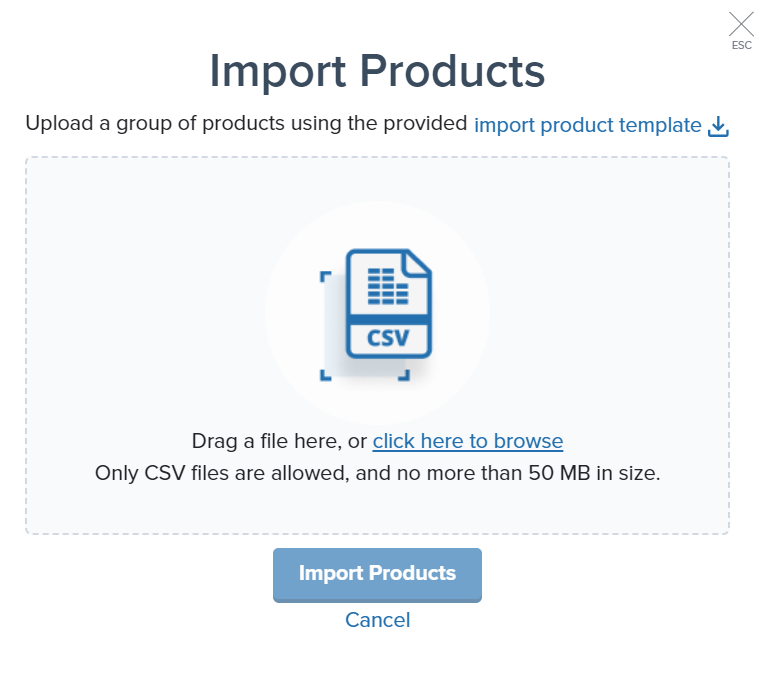
Prepare your product data
Open the downloaded file and delete the sample rows but keep all column headers.Save your edited Excel file and return to the pop-up.
Upload your file
Drag and drop the file, or select click here to browse.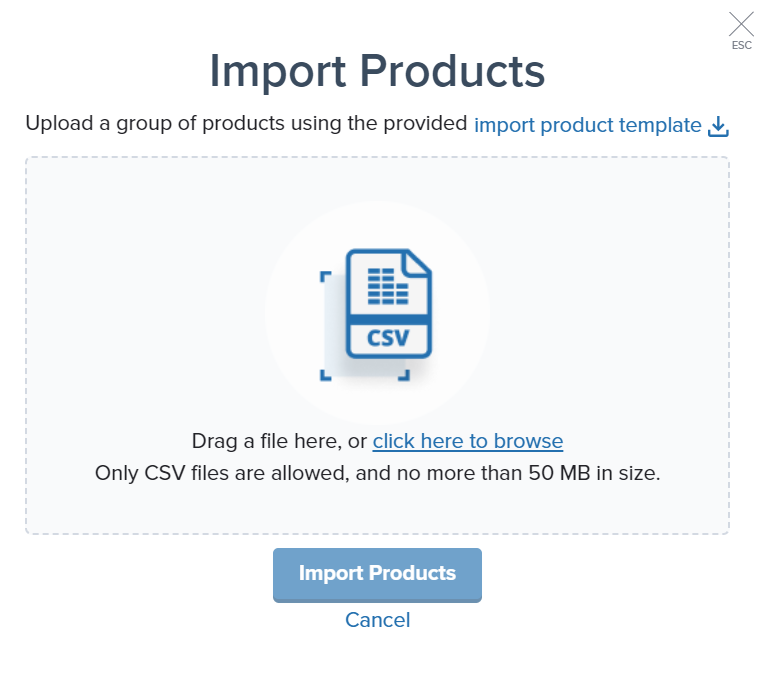
Click the trash can icon to the right of the file’s name to remove the selected file.
Troubleshooting Failed Imports
If any of your products failed to import, click Download import template (hyperlinked) to review why the product(s) failed.Let’s Dive Deeper
Product Catalog Page
Navigate and organize your full product catalog
Product Details Page
Configure detailed settings for each product
Adding Product Variants
Learn more about managing product variants
Setting Product Preferences
Essential product configuration overview
Bulk Updating Products
Update multiple products at once via Excel
Syncing Your Products
Import products from your integrated stores

Questions? Contact Jetpack Care.
If you have any questions or run into issues, you can always contact Jetpack Care for help. Our team is always here to assist via Slack, phone, or email!