

When your products arrive at a Jetpack fulfillment center in cases, you have the option to have them picked and shipped as full cases rather than individual units. By understanding the difference between cases and eaches—and configuring your products accordingly—you can optimize your fulfillment costs and streamline order processing for both B2C and B2B orders.
Cases vs. Eaches
These two terms describe how your products are stored and picked at the fulfillment center: Case — Multiple units (eaches) of the same SKU packaged together in a single box. Eaches — Individual units that can be removed from a case and sold separately. How Jetpack picks your products—as cases or eaches—directly affects your pick fees and fulfillment workflow. The sections below walk through how this works for different order types.Case Picks for B2C Orders
For B2C orders, Jetpack picks items as eaches by default, even if your SKU arrives in cases. To have Jetpack pick as full cases instead, toggle the This item should be picked as a whole case option on the SKU’s Product Details page in your Jetpack dashboard. You’ll find step-by-step instructions for this in the Configuring Products as Cases section below.Case Picks for B2B and Wholesale Orders
B2B and wholesale orders containing products marked as This item should be picked as a whole case will always be charged as case picks. This is typically more cost-effective for you compared to having Jetpack pick them as individual eaches. For products that aren’t configured for case picking, Jetpack will determine the best way to pick them based on how they’re stored. You cannot request a specific storage type—the only way to guarantee case picks is to mark the product accordingly. Here’s how storage location affects picking:- Bin/Shelf Locations — Picked as eaches.
- Pallet Locations — Assumed to be case picks (default is 6 units per case unless specified otherwise).
Updating Units Per Case for B2B Orders
When picking from a pallet, Jetpack assumes 6 units per case unless you specify otherwise. To update the units per case for your product, reach out on Slack or email to your care manager with the total units per case for the product.The units-per-case value determines how Jetpack calculates case picks. For example, if a B2B order requires 30 units of a product and 6 units per case is set, Jetpack will pick 5 cases (30 ÷ 6 = 5).
Configuring Products as Cases
To set up a product for case picking, you’ll first want to create a separate SKU for the case-packed product—even if an SKU for individual units already exists. Here are a few things to keep in mind:- The SKU name should clearly indicate it’s a case and include the number of units it contains (e.g., “Case of 12: Blue Bottles”)
- Case-packed SKUs must have a different barcode than the eaches SKU
- If you offer multiple case sizes (e.g., a case of 6 items versus a case of 9 items), each size needs its own SKU
Create the case-packed SKU
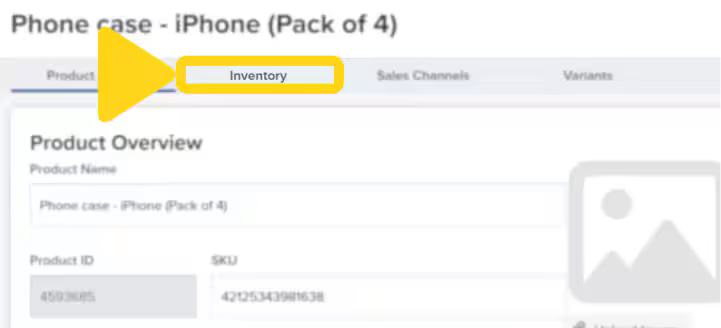
Navigate to the Product Catalog page and create a new SKU for your case-packed product.
Enable case picking
Check the box for This item should be picked as a whole case under the Case Picks section.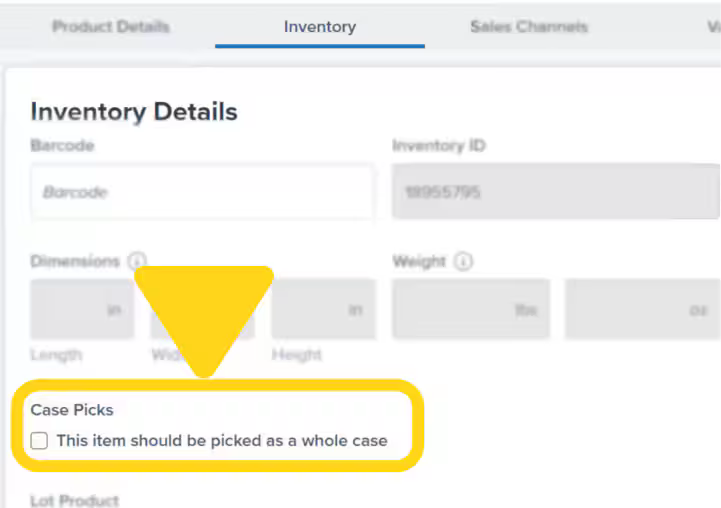
Sending Case-Packed Products to Jetpack
Before shipping inventory to a Jetpack fulfillment center, make sure that products marked as case picks are sent with the case quantity (not the individual unit count) when creating a Warehouse Receiving Order (WRO).Let’s Dive Deeper
Product Details Page
Configure product settings and tracking
About Barcodes
Barcode requirements and setup
Creating WROs
Send inventory to fulfillment centers
Creating Kitting Orders
Physical assembly and preparation work
Case Breakdowns
Break cases into individual units
B2B Fulfillment
Wholesale and B2B order fulfillment

Questions? Contact Jetpack Care.
If you have any questions or run into issues, you can always contact Jetpack Care for help. Our team is always here to assist via Slack, phone, or email!